 EETS Partner
Chapter 1
Getting started
From sign-up to your first bill in under an hour. Do these steps once, in this order.
1.1 What you need
- An Android phone or tablet running Android 8.0 or newer. No special machine to buy.
- Internet for set-up. After that, billing keeps working even when the internet drops.
- Your details: restaurant name and address, GSTIN, FSSAI number and the UPI ID where you want payments.
- Your menu: a printed menu, an Excel sheet, or nothing at all (you can start from a ready menu).
- Optional: a Bluetooth or Wi-Fi thermal printer (58 or 80 mm, ESC/POS), an Android POS machine with a printer, and an old phone or tablet for the kitchen screen.
1.2 Who uses what
Everyone uses the same EETS Partner app. What each person sees depends on their role and PIN.
| Role | What they do |
|---|---|
| Owner | Sees everything, from anywhere: live takings, reports, the anti-theft log, staff and devices. Gets the nightly summary on WhatsApp. |
| Manager | Runs the floor, approves voids, discounts and reprints with a manager PIN, closes the day. |
| Cashier | Accepts QR orders, makes bills, takes UPI, cash or card, handles takeaway tokens. |
| Captain | Takes orders at the table on their own phone and sends the KOT to the kitchen. |
| Accountant | Optional view-only access to download GST and sales files for filing. |
| Kitchen screen | A phone or tablet near the pass that shows every KOT with a timer. |
Your plan decides how many devices can run at once: Basic 2, Premium 6, Max 15.
1.3 Get your free activation code
- WhatsApp 97431 90044 and tap Get free code, or email hello@eets.in with your restaurant name, city and the mobile number you will sign in with.
- We send you a free 6-month code for the Max plan. No card is needed.
- The code is tied to that mobile number. Use it within 30 days. One code per mobile number.
1.4 Install, sign in and activate
- Install EETS Partner from the Google Play Store.
- Sign in with the same mobile number the code was sent for.
- Enter the activation code. The Max plan switches on for 6 months.
Tip. Sign in on the device the owner keeps. Staff join later by scanning a QR, so they never need the owner’s number.
1.5 Add your restaurant details
Enter your restaurant name, address, GSTIN, FSSAI number and UPI ID. These print on every bill.
- The UPI QR on each bill pays straight into your own UPI ID. EETS never holds your money and takes no commission.
- Check the GST rate on your dishes with your accountant. The bill splits it into CGST and SGST for you.
1.6 Set up your menu
When you first set up, EETS asks how you want to add your menu. Pick whichever is fastest:
- Photo or PDF: take a photo of your printed menu, or pick a menu PDF. EETS reads the dishes, prices and sections; check each dish before saving.
- Templates: tick the common dishes you serve from ready lists and set your price on the spot.
- Excel or by hand: import your existing sheet, or add dishes one by one.
Then tidy it up in Menu and stock:
- Group dishes into categories and sub-categories (for example Dosa and idli, Biryani, Tandoor).
- Mark each dish veg or non-veg.
- Add sizes such as half and full, and add-ons.
- Turn stock off for a dish that has run out, so captains and guests cannot order it. Turn it back on when ready.
1.7 Tables, areas and table QR codes
- Create your areas (for example Main hall, Terrace, AC room) and the tables in each. Every area gets its own live map.
- Print a QR sticker for every table straight from the app. Guests scan it to see your menu in English, ಕನ್ನಡ or हिन्दी and order from their own phone, with nothing to install.
- The same table link works on an NFC sticker or table tent: guests can simply tap their phone.
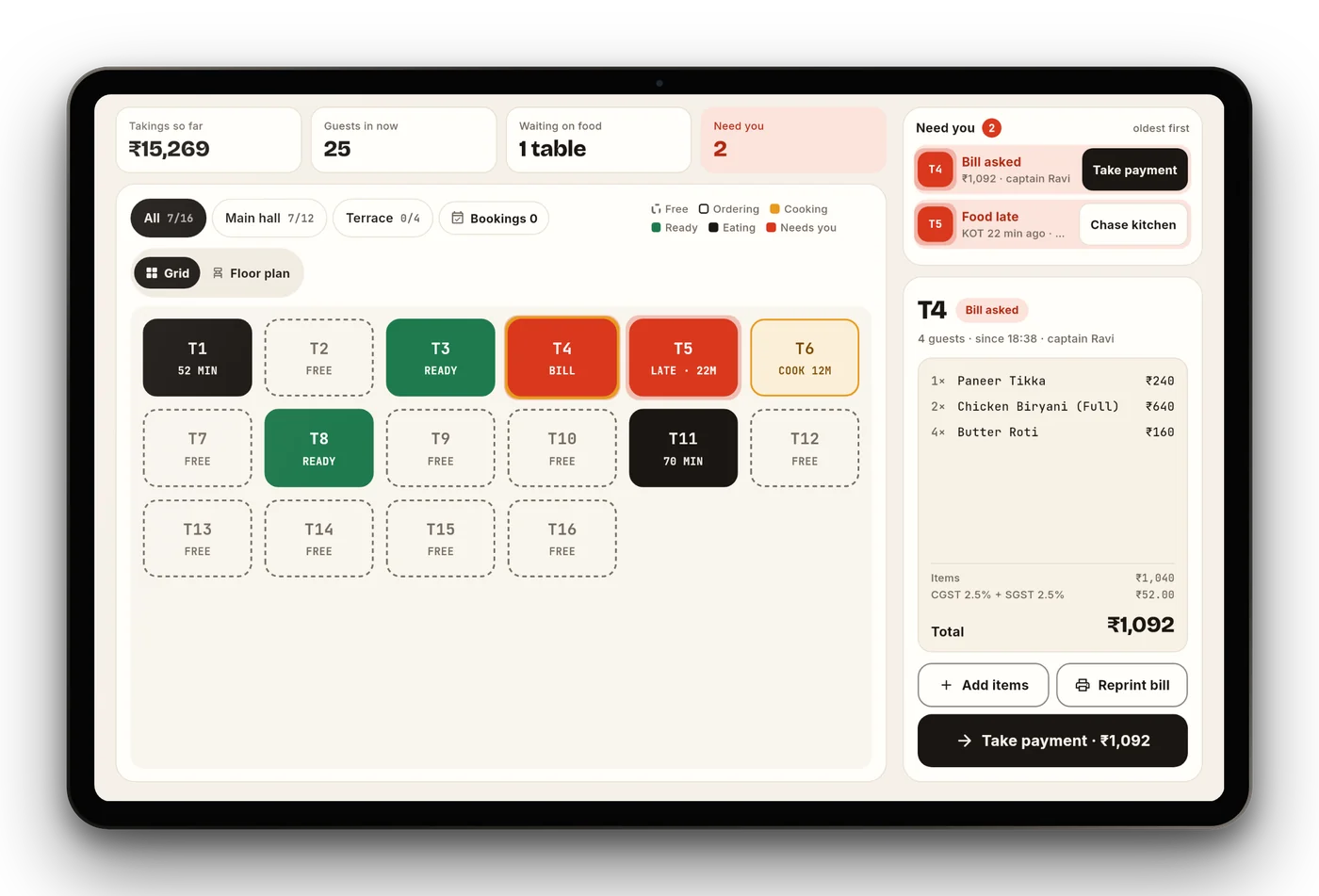
The live floor on a counter tablet: free, ordering, cooking, ready, eating and bill-asked tables in colour.
1.8 Connect your printers
- Switch the printer on. For a Bluetooth printer, pair it first in your phone’s Bluetooth settings.
- In EETS, open More › Printers, add the printer and choose what it prints: bills at the counter, or KOTs for a kitchen station (food, drinks).
- Pick the paper width: 58 mm or 80 mm.
- Print a test page. If nothing prints, see the troubleshooting chapter.
Use one printer per kitchen station (for example tandoor, Chinese, bar) so each section only gets its own items. Android POS machines that print through Bluetooth work too, including auto-cut and cash drawer.
1.9 Bring in your staff
- Open More › Staff and devices and tap Add staff. Enter their name and role: manager, cashier or captain (waiter). They only see what that role allows.
- Show their joining QR on screen. They install EETS Partner on their own phone and scan it, or type the join code shown under the QR.
- They set a 4-digit PIN. From now on they sign in with that PIN.
Each person signs in with their own PIN, so every order, move and removal shows who did it. If a phone is lost or someone leaves, remove the device from your account in one tap.
1.10 Set up the kitchen screen
- Mount an old phone or tablet near the pass and open EETS on it as the kitchen display.
- Set Alert loudness in More › This device. New tickets play a loud alert that repeats every few seconds, for up to 2 minutes, until someone touches the screen.
- Keep it on charge, with the screen set to stay on.
- Prefer paper? KOTs can print per station instead, or as well.
1.11 Go-live checklist
| ☐ | Code activated; Max plan showing |
| ☐ | GSTIN, FSSAI and UPI ID entered; a test bill shows them correctly |
| ☐ | Menu checked: prices, veg marks, sizes, GST rate |
| ☐ | Tables created and QR stickers on every table |
| ☐ | Printer test page printed; kitchen screen alert heard |
| ☐ | Every staff member joined with their own PIN and role |
| ☐ | One test order taken, sent to the kitchen, billed and paid |
Stuck at any step? WhatsApp 97431 90044 (10 am to 7 pm) and our team will set it up with you.
Chapter 2
Running a service
One order, from the table to the kitchen to the bill. These are the steps your team does every day.
2.1 Before you open
| ☐ | Tap Start day and enter the opening cash in the drawer |
| ☐ | Every phone and tablet is charged and signed in with that person’s PIN; staff tap Clock in or out on the PIN screen |
| ☐ | Printers are on, with paper; the kitchen screen is on and its volume is up |
| ☐ | Dishes that are not available today have stock turned off |
| ☐ | The QR orders chime is on at the counter |
2.2 Take a dine-in order (captain)
- Open a new order and choose Dine-in. Pick the table (for example T6).
- Add dishes: tap a category, type in Find a dish, or tap the mic and say the order, for example “two masala dosa, one filter coffee”.
- Choose the size (half or full) and any add-ons. Add a note for the kitchen if needed, such as “less sugar”.
- The bar at the bottom shows how many items are not sent yet. Tap Send KOT.
- Later rounds work the same way: add dishes to the same table and send a new KOT.
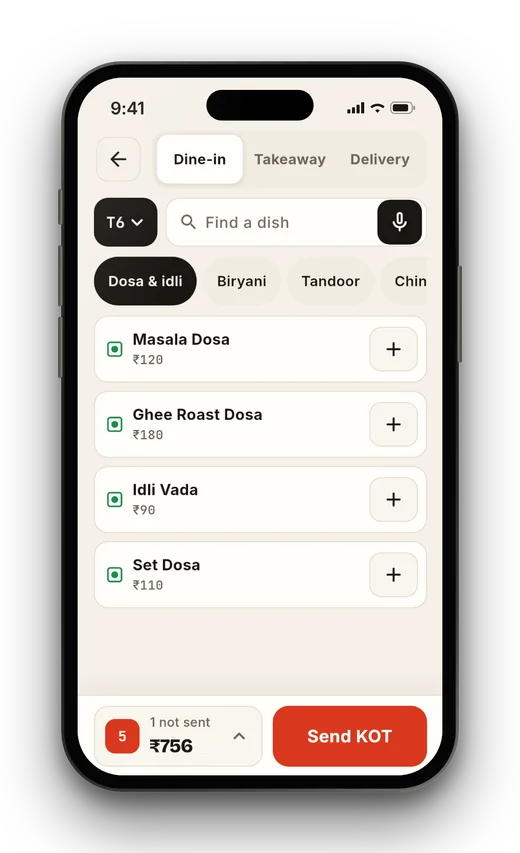
Captain screen. Dine-in, Takeaway and Delivery at the top; table picker, search and mic; categories; the Send KOT button with the unsent count.
2.3 Accept table QR orders
- When a guest orders from the table QR, the counter plays a loud alert that repeats until someone looks.
- Open QR orders. Each order shows the table, guest name, items, total with GST and any guest note. Accept within about 2 minutes.
- Read any warning, for example “Nobody seated at T9 on the floor”. Check the guest really is at that table.
- Tap Accept · send KOT. Use Edit to change items first, or Reject if the order is not genuine.
- The first phone that orders holds the table, so a second phone cannot send a duplicate order. Staff can add another phone to the table, or release it. Every release is logged.
- Guest calls shows guests who tapped to call a waiter from their phone.
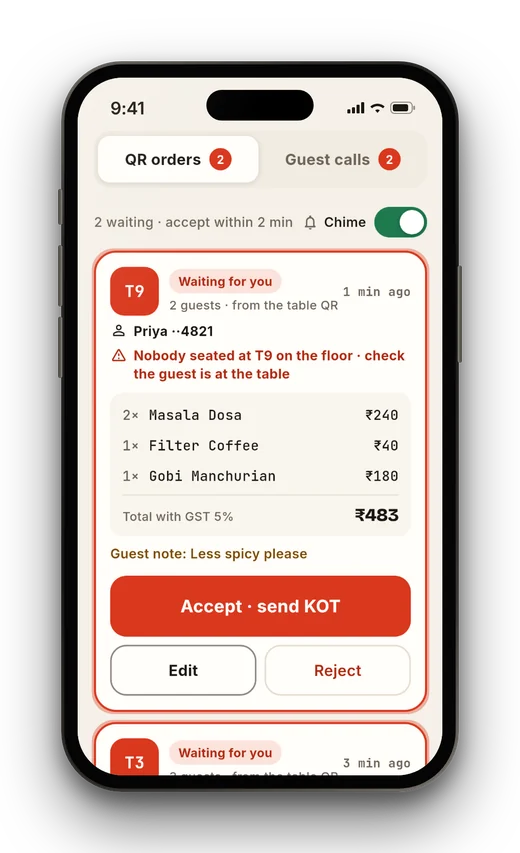
QR orders. Waiting orders, the chime switch, a seating warning, the guest note and Accept · send KOT.
2.4 The kitchen screen
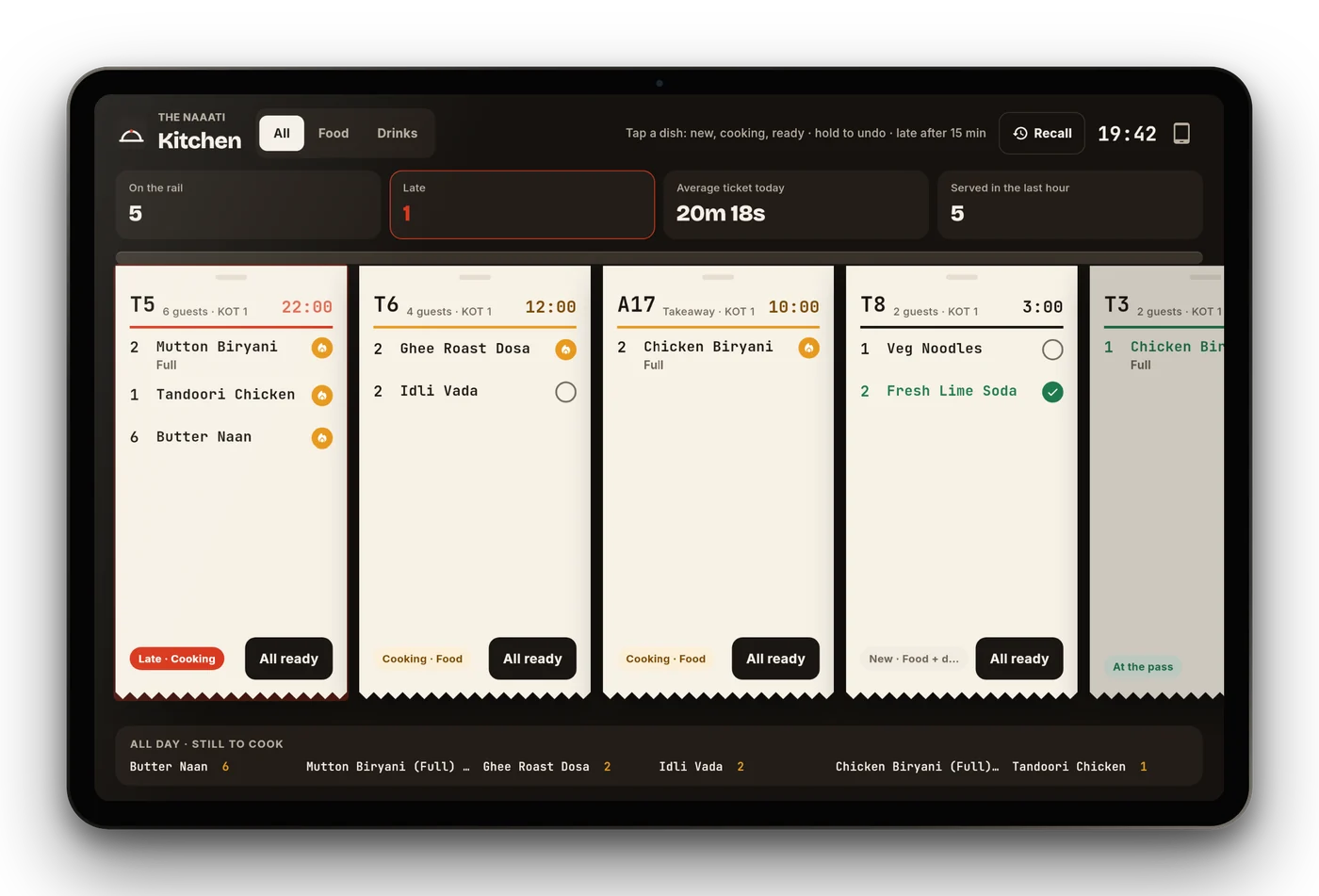
- Every KOT appears as a ticket with the table, guests and a running timer. Filter by All, Food or Drinks.
- Tap a dish to move it from new to cooking to ready. Press and hold to undo.
- Tickets turn red when late (after 15 minutes). The top shows how many are on the rail, late, average ticket time and served in the last hour.
- Tap All ready when the whole ticket is done. Use Recall to bring back a ticket closed by mistake.
- The strip at the bottom, All day · still to cook, totals each dish across all tickets so the kitchen can batch.
2.5 Bill and take payment
- When a table asks for the bill, it shows under Need you as “Bill asked”. Tap Take payment, or open the table.
- Check the bill with Show bill. GST is worked out for you.
- If needed: Add tip, On the house (complimentary item), or a discount. Discounts and complimentary items need a manager’s PIN and go into the anti-theft log.
- Tap Customer to save the guest’s name and number with the bill.
- Choose how they pay:
- UPI: tap Show to guest for a full-screen QR with the amount. When the money arrives in your UPI app, tap Paid (or Mark paid · UPI).
- Cash or Card, then Mark paid.
- Split: part UPI, part cash, and so on.
- Pay later: for regular customers on a credit account.
- Tap Print bill, or Share PDF to send it on WhatsApp.
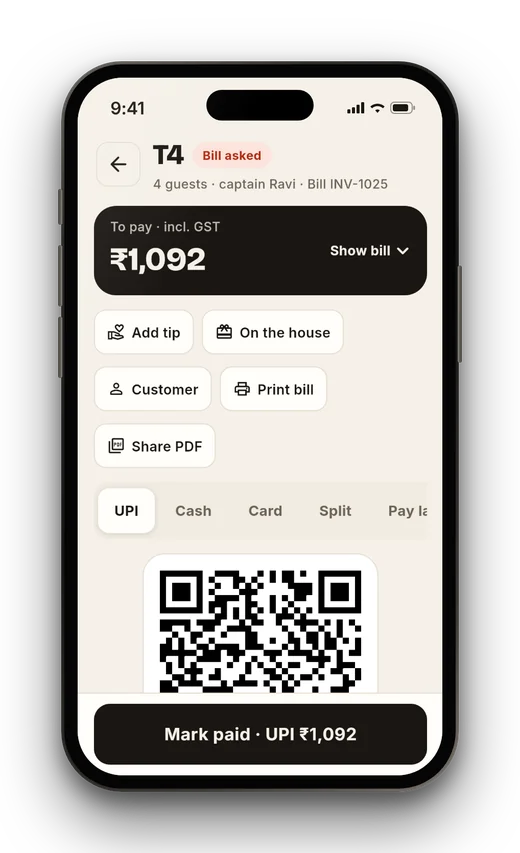
Bill screen. Amount with GST, tip, on the house, customer, print and share, payment types and Mark paid.
Always check the UPI app before tapping Mark paid. A screenshot from a guest is not proof of payment.
2.6 Takeaway, delivery and quick counters
- Choose Takeaway or Delivery when you start the order. Takeaway orders get a token.
- The takeaway board shows New, Preparing, Ready and Picked up. Tap Move to Ready when the parcel is packed. Use New takeaway to start another.
- Quick-service counters: turn on quick bill in Settings › How you take orders. The order button then reads Bill & print; the bill prints and the order closes once paid.
2.7 Close the day
- Make sure no table is still open and every bill is marked paid or moved to pay later.
- Count the cash in the drawer and compare it with the cash total for the day.
- Check today’s takings by UPI, cash and card, then tap Close the day and enter the cash you counted. EETS shows what was expected, so any difference is clear.
- A closed day can only be re-opened with the owner’s or a manager’s approval. The day runs until 4 am by default, so late-night bills count for the right day.
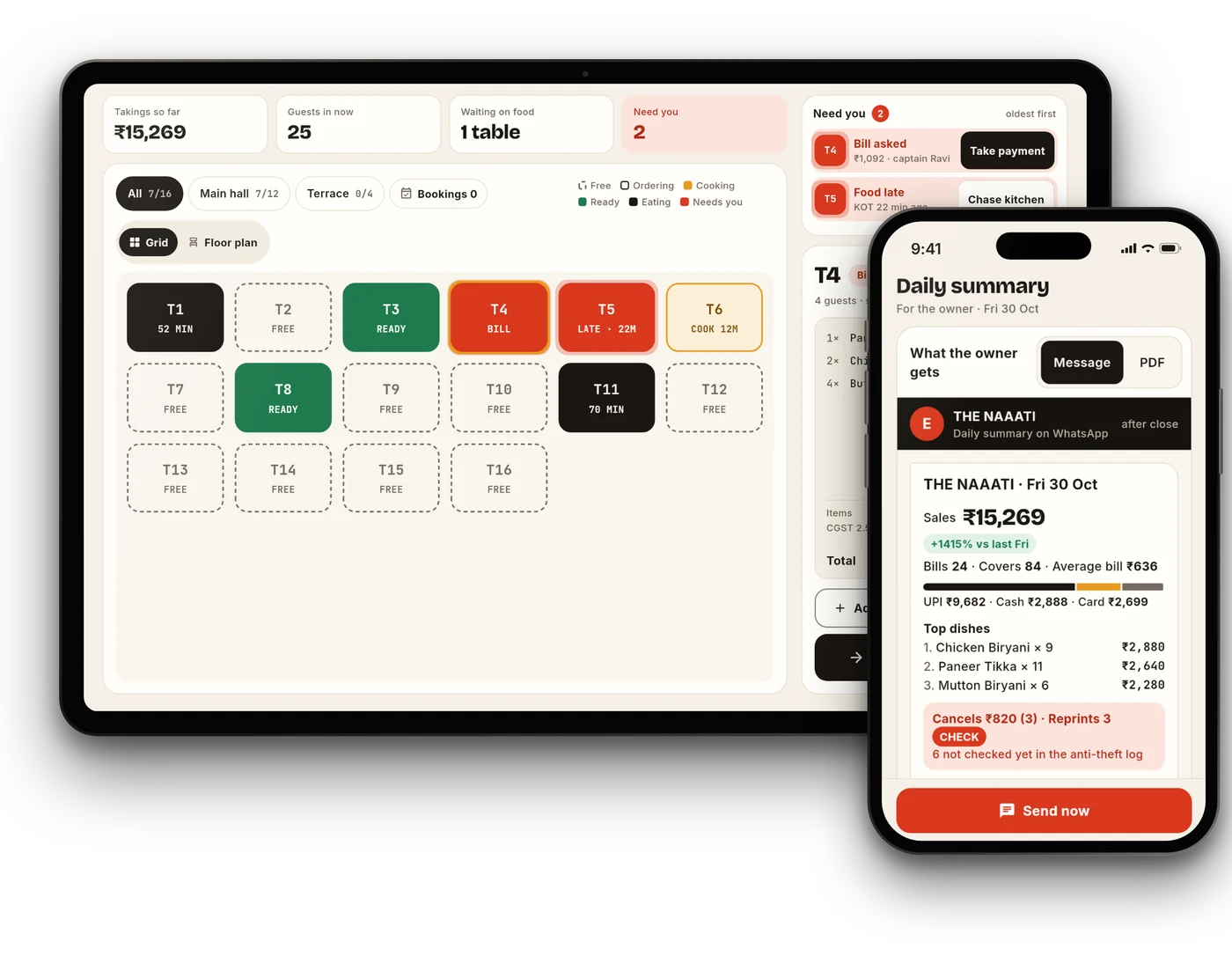
- The owner gets the day’s summary on WhatsApp after closing: sales, bills, top dishes, payment split, and cancels or reprints to check.
2.8 If the internet goes down
- Keep billing. Bills and KOTs keep working on each device and sync when the internet is back.
- Table QR ordering runs on the guest’s own phone, so it needs their mobile data.
- Do not log out or uninstall the app while offline. Wait until it is back online and synced.
Chapter 3
Owner and manager
See your numbers live, stop leaks and manage staff, devices and your plan.
3.1 Your live dashboard
- The top card shows today’s takings, bills, guests in and tables cooking, live from every device.
- Need you lists what needs action, oldest first: a table that asked for the bill (Take payment) or food that is late (Chase kitchen).
- Switch areas with All, Main hall, Terrace and so on, see Bookings, and view tables as a Grid or a Floor plan.
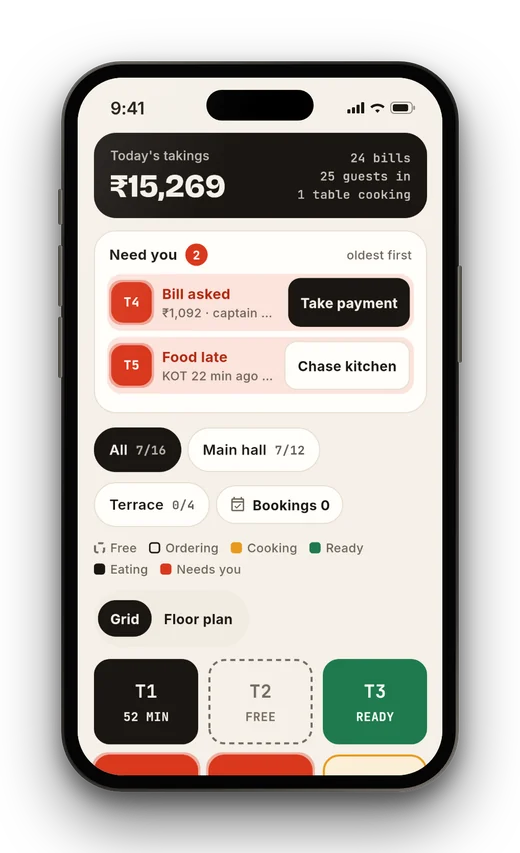
Owner view on a phone. Today’s takings, the Need you list and the tables by status.
3.2 Reports
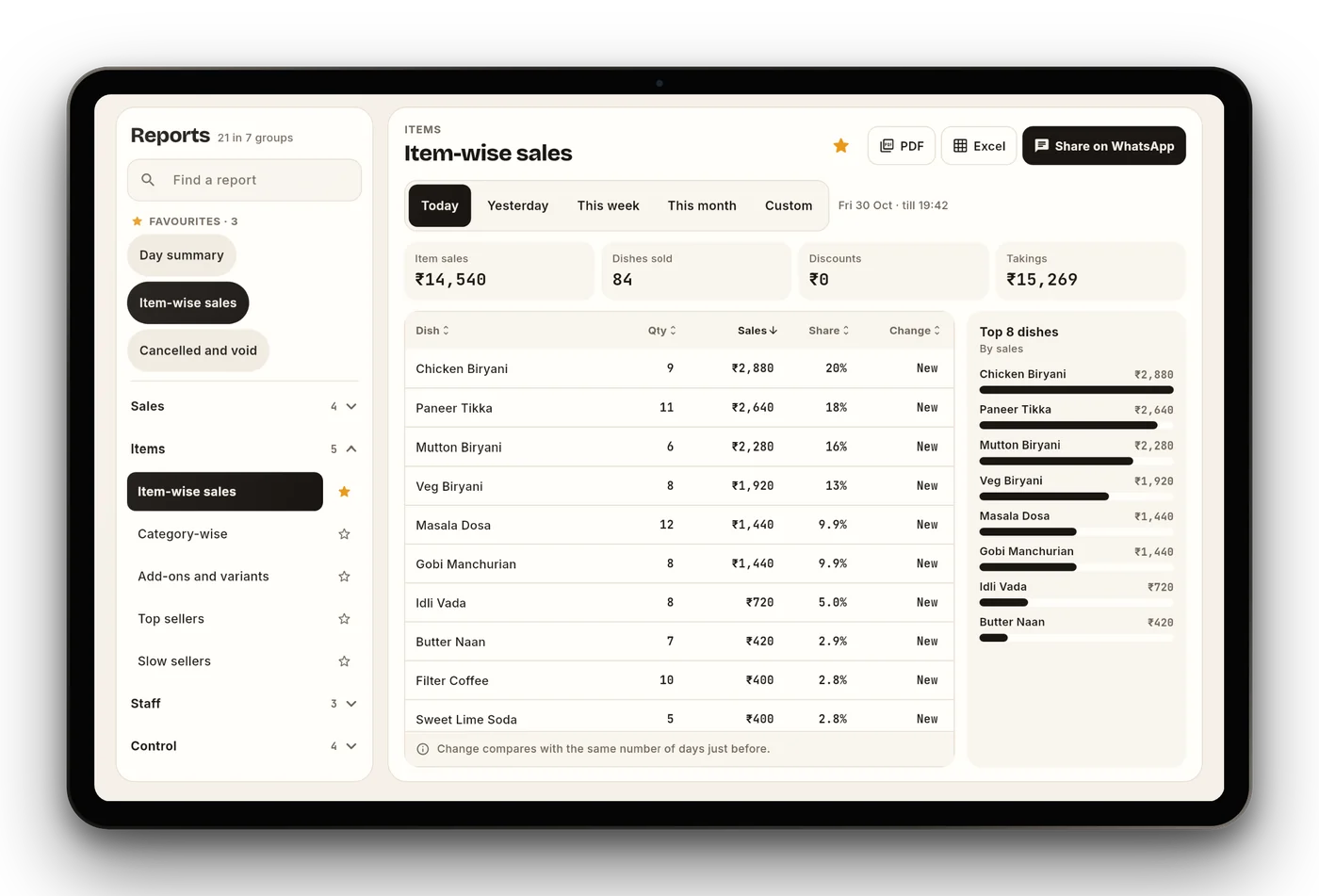
- Open Reports. There are 21 reports in groups such as Sales, Items, Staff and Control. Use the search box or star your favourites.
- Pick the period: Today, Yesterday, This week, This month or Custom.
- Share any report as PDF, Excel or straight on WhatsApp.
| Report | Use it to |
|---|---|
| Day summary | See the day at a glance: sales, bills, payment split |
| Item-wise sales | See quantity, sales and share for each dish, and the change from the same days before |
| Top and slow sellers | Decide what to push, re-price or drop from the menu |
| Category-wise, add-ons and variants | See which sections and sizes earn most |
| Staff | See sales and actions by each person |
| Cancelled and void | Check every cancellation and who approved it |
3.3 The nightly WhatsApp summary
After you close the day, the owner gets a summary on WhatsApp. It shows:
- Sales, with the change from the same day last week
- Bills, covers and average bill
- The split between UPI, cash and card
- Top dishes
- Cancels and reprints, with a CHECK flag for any not yet reviewed in the anti-theft log
In Daily summary, choose who receives it, whether it comes as a message or a PDF, and when: after you close the day, or at a fixed time each night. Tap Send a test now to check it.
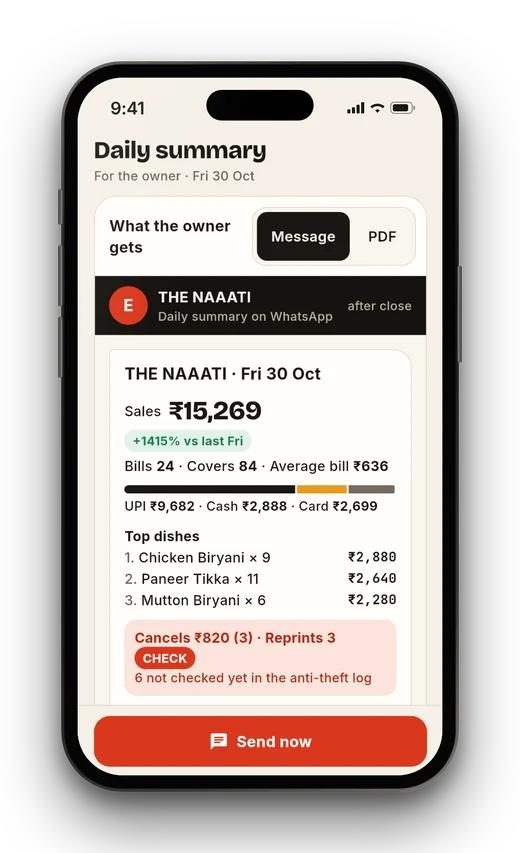
Daily summary. A preview of exactly what the owner receives, with Send now.
3.4 The anti-theft log
- Removed items, cancelled KOTs, discounts, reprints, cash drawer opens and price changes are all written to a log that nobody can edit or delete, not even the owner.
- The risky ones need a manager’s PIN first, so every entry shows who did it and who approved it.
- Check the log every day. Items you have not reviewed are flagged in the nightly summary.
3.5 Staff, attendance and devices
- Add staff by showing the joining QR (see chapter 1). Each person sets a 4-digit PIN and gets a role.
- Staff tap Clock in or out on the PIN screen or in More › Staff. Owners and managers see attendance, salary and payslips (Premium and Max).
- To give someone a new PIN, use Change PIN next to their name in More › Staff and devices.
- If a phone is lost or someone leaves, open More › Staff and devices and tap Remove now. The phone is signed out of your restaurant. The owner can also Sign out all other phones at once.
- Your plan sets how many devices can run at once: Basic 2, Premium 6, Max 15.
3.6 Customers and credit accounts
- Save a guest’s name and number on the bill with Customer. Their visits are kept with each bill.
- For regulars who pay at the end of the month, use Pay later to put the bill on their credit account.
3.7 Money pages
- Takings: today’s sales by UPI, cash and card.
- Cash drawer: opening cash, cash in and out, withdrawals and top-ups.
- Dues: pay-later bills by customer, with credit limits.
- Expenses: money paid out, by category.
- Tips: recorded separately, never counted as sales or GST.
- Every money page has a Download button for PDF or Excel.
- Accountant files (More › Money and control): GSTR-1 file, sales and purchase registers and a month summary, shared in one go with your CA.
3.8 Bring guests back
- Customers (More › Customers): visits and spend for each guest saved on a bill.
- Loyalty points and a Stamp card (in Settings): reward regulars automatically on paid bills.
- Coupons at payment, happy hour prices and category timings (for example breakfast till 11 am) in More › Menu and tables.
- Combos sell several dishes at one price.
- Bookings and waitlist from the floor: keep a table for a booking and message the guest when it is ready.
- Visiting card (More › Restaurant): print-ready cards with your guest page QR.
3.9 More than one outlet
The Max plan covers up to 3 outlets with one login for all of them. For more than 3 outlets, WhatsApp us on 97431 90044.
3.10 Your plan and payments
| Plan | Per year | Includes |
|---|---|---|
| Basic | ₹999 | 2 devices, 1 outlet. Bills, GST, UPI QR, takeaway tokens, staff PINs, day close. |
| Premium | ₹1,999 | 6 devices. Basic plus captain phones, kitchen screen and table QR ordering. |
| Max | ₹4,999 | 15 devices, up to 3 outlets. Premium plus one login for all outlets, bar and many printers, priority WhatsApp help. |
- Prices include GST. There is no commission on any order.
- Pay online at eets.in/pay. Your plan updates in the app automatically.
- Paid but not used? Ask within 7 days for a full refund to your original payment method.
Chapter 4
Troubleshooting and help
Find the problem, try the fix in order. If it still does not work, WhatsApp us.
4.1 Quick fixes that solve most problems
- Check the device is online and EETS Partner is open, not closed in the background.
- Update EETS Partner from the Google Play Store.
- Close the app fully and open it again. If that does not help, restart the phone or printer.
- Turn off battery saver for EETS Partner in Android settings, so the phone does not put it to sleep. This matters most on the kitchen screen.
Printing
| Nothing prints | Printer on and paper loaded the right way up · Bluetooth on and printer paired in Android settings · printer close to the phone · the printer is selected in EETS · print a test page · restart printer, then app. |
| Text is cut off or looks like junk | The paper width in EETS (58 or 80 mm) must match the printer. The printer must support ESC/POS. |
| KOT prints at the wrong station | Check which station and categories each kitchen printer is set to print. |
Orders and kitchen
| KOT not showing on the kitchen screen | Kitchen device online and open as the kitchen display · battery saver off for EETS · use Recall if a ticket was closed by mistake. |
| No sound for new orders | Raise Alert loudness in More › This device · turn off Do Not Disturb · make sure the QR orders Chime switch is on. |
| A QR order did not arrive | The guest needs mobile data · check they scanned the right table’s QR · if another phone holds the table, staff can add the guest’s phone or release the table. |
| Guest cannot open the menu from the QR | Ask them to use the phone camera or Google Lens with mobile data on · replace a torn or faded sticker by printing it again from the app. |
| A dish cannot be ordered | Its stock is turned off. Turn it back on in Menu and stock. |
Bills and payments
| Guest says UPI is paid but money has not arrived | Do not tap Mark paid yet. Check your UPI or bank app. Make sure the right UPI ID is saved in your restaurant details. |
| GST on the bill looks wrong | Check the GST rate set on that dish and that your GSTIN is entered correctly. |
| Need to remove an item, discount or reprint | Ask a manager to approve with their PIN. Every such action is saved in the anti-theft log. |
| Cash in the drawer does not match | Check bills marked as cash, split payments and pay-later bills for the day, then the anti-theft log for drawer opens. |
Sign-in, staff and devices
| Activation code not accepted | Sign in with the same mobile number the code was sent for · use it within 30 days · each number gets one code · check for typing mistakes. |
| Forgot a PIN | Staff: tap Forgot PIN? Ask the owner; the owner sets a new one with Change PIN in More › Staff and devices. Owner: tap Forgot PIN? (owner) to get a fresh SMS code on the owner’s number. |
| Cannot add another device | You have reached your plan’s device limit (Basic 2, Premium 6, Max 15). Remove a device you no longer use, or move to a bigger plan. |
| A phone is lost or stolen | Open More › Staff and devices and tap Remove now for that phone straight away. |
Internet, sync and the daily summary
| The internet is down | Keep billing. Everything syncs when it is back. Do not log out or uninstall while offline. |
| Two devices show different numbers | One of them has not synced yet. Bring both online and give them a minute. |
| The WhatsApp summary did not come | If it is set to come after day close, make sure the day was closed · check the WhatsApp number in Daily summary · tap Send a test now. |
| The app is slow or closes | Update the app · free some phone storage · restart the phone · the phone needs Android 8.0 or newer. |
4.2 Desktop and web dashboard
Coming soon, included in every plan
A Windows desktop app and a web dashboard will let you bill on a desktop or laptop at the counter, and see reports, menu and staff on a big screen from any browser, live with every phone. This manual will be updated with steps when it launches.
Until then, use an Android tablet at the counter for the big-screen view. Owners can see everything from their phone, wherever they are.
4.3 Getting help
| 97431 90044. Send “Hi” for prices, answers to common questions, a free demo, or Talk to us to reach a person (10 am to 7 pm). | |
| hello@eets.in | |
| Website | eets.in · pay for a plan at eets.in/pay |
When you contact us, please share your restaurant name, the mobile number you sign in with, your phone or printer model and a screenshot of the problem. Never share your passwords or OTPs with anyone, including us.
Your data is stored in India, encrypted and kept separate from every other restaurant. You can export or delete it at any time. Privacy, terms and refunds: eets.in/partner. EETS® is a registered trademark of Provantic Technologies Private Limited, Bengaluru.